
Guest Spots: Bring Your Books With You.
You're not always in one city. Maybe you've got a week booked in London, a weekend lined up in Berlin, or a whole month set aside in a studio that isn't the one you normally work from. Guest spots let you put those dates on your page, so people know where to find you and when, and now you can send them straight there with one link.
What a guest spot is
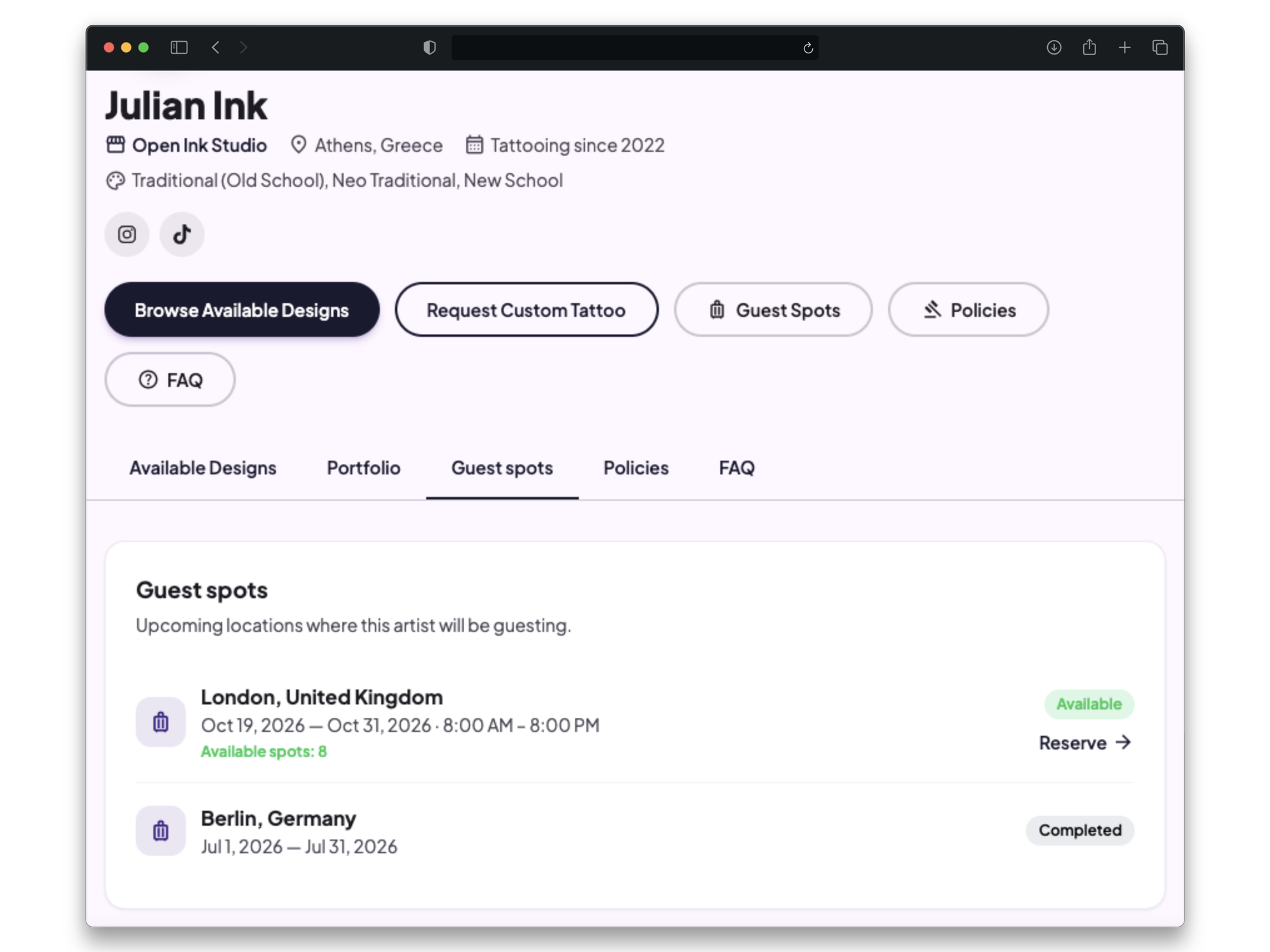
A guest spot is a listing on your page for a location and date range outside your normal studio. It shows the city, the dates, and whether you're still taking bookings for it. Clients browsing your page see it the same way they see your regular availability, just tied to a different place and time.
How does it work
If you're guesting somewhere, the people most likely to book you are the ones who already follow you. But if the only way to find out about a guest spot is a caption buried in your feed from three weeks ago, most of them miss it.
Putting the guest spot on your page fixes that. It's always there, always current, and it doesn't disappear the way a post does. Anyone who lands on your page, whether from a story, a DM, or your bio link, can see exactly where you'll be and grab a slot. You can even link to it directly using: inkjin.com/@username#guest-spots (see more about links).
Setting up your guest
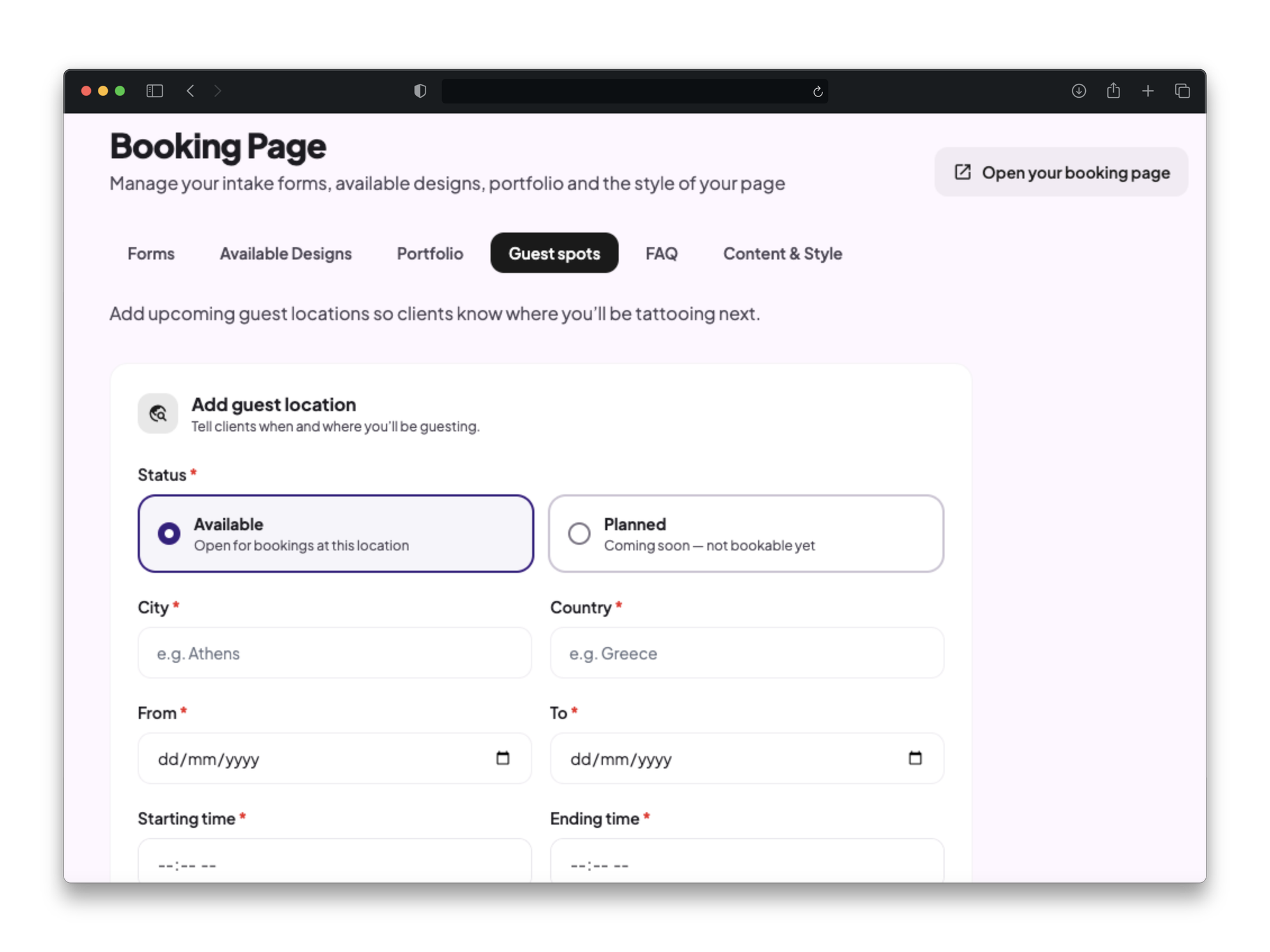
Add a guest spot from your dashboard with a location and a date range. Mark it as available once you're ready to take bookings for it. After the dates pass it will switch off automatically.
You can add the studio information (name and address), set a limit on the number of tattoo sessions if you want, set a response deadline for how long a customer has to respond, and set a travel buffer to block your home-studio calendar for the days before and after your guest spot dates, to account for travel.
Deposit to reserve a spot
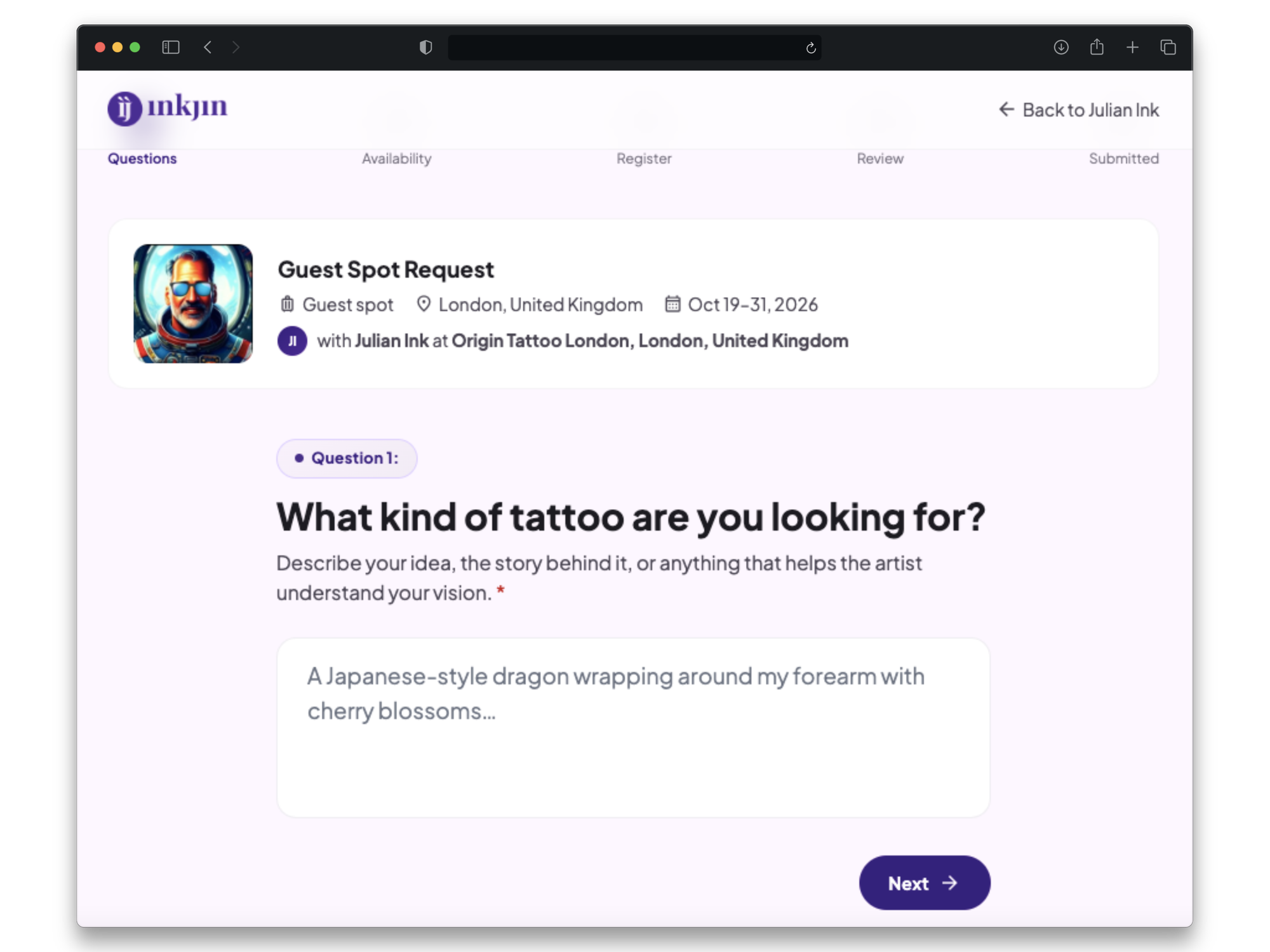
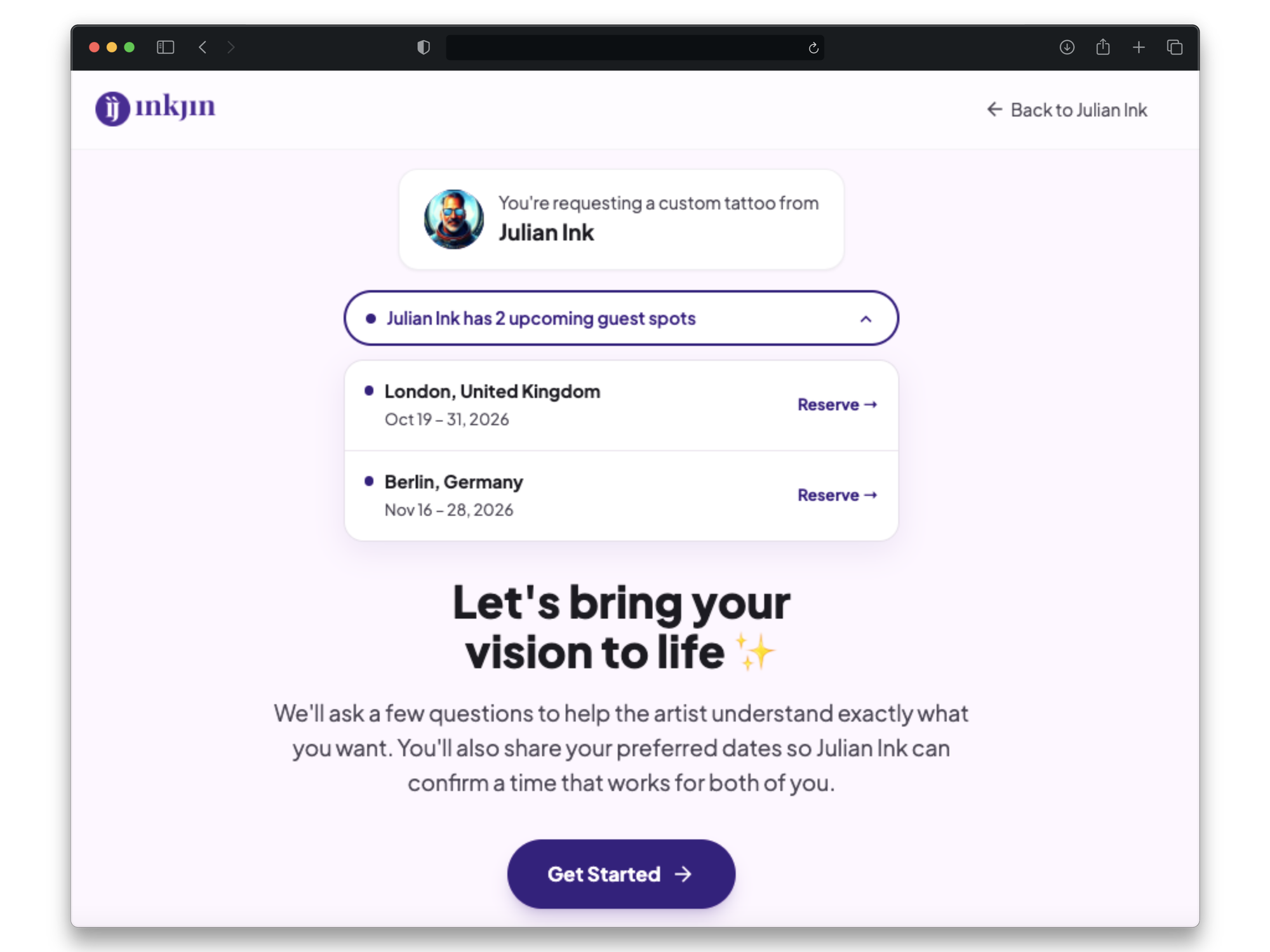
Clients book it directly from the Guest Spot section on your page, or by going through the custom request flow as for any other request. To reserve a spot and confirm a date with you, clients need to pay a deposit. Everything in your settings (deposits, policies etc), apply the same way for guest spots.
Getting the word out
A guest spot only works if people see it. Send people straight to it with one link: inkjin.com/@username#guest-spots
Perfect for a Story, a pinned bio link, or dropping in DMs when someone asks about your dates:
- Post it as a story as soon as the guest spot goes live, with the link straight to your guest spots section so followers land right where they need to be and can reserve a slot without scrolling.
- Pin it to your bio for the week leading up to the trip.
- Drop it in DMs when someone asks about your dates instead of typing out the details again.
- Share it with the studio or shop you're guesting at, since their audience is often unfamiliar with your page and needs the direct link.
- Send your policies link alongside it, so there's no confusion about deposits or cancellations before someone books
So if you planning a guest spot and want to take reservations it's now live on Bookpay.